
Hello
…and now for something completely different: VMware NSX. A friend of mine (or as Michael Scott one said: more than a friend, a coworker!) approached me a few months ago with a Zscaler problem and it turned out that the root cause was somewhere in NSX. I don’t like having no clue about something so I decided to go down the rabbit hole and learn something about NSX.
I’ve always loved CBT nuggets, especially my favourite “trio”: Jeremy Cioara, Keith Barker and Anthony Sequiera, so when I saw that the NSX course was done by Keith, it was a no-brainer. I’ve done around half now; i realize that with NSX i’m a bit late to the party because it’s such a mature technology but better late than never 🙂
After I finish, i want to do a CBT course in F5, because it’s also something i’ve never touched before. I don’t have a lot of time to spend on all this, perhaps 2 hours a day, but you know what they say: slow and steady wins the race.
Milan IV DC is online for all clouds
The new Milan IV Data Center is now online and in public rotation. Feel free to have it added to your subclouds or to your GRE/IPsec tunnels.

Next stage of blocking outdated ZCC versions on September 15th
Hello
On September 15th we will start blocking ZCC 4.4 or earlier versions for Windows + ZCC 4.5.0 for Mac from enrollment. This marks the next stage of blocking non-supported versions.
The final date is January 1st when we will block all non-supported versions from enrollment.
Mexico II DC now operational
I’m thrilled to inform you that Zscaler Mexico II DC is now up and running. You can change your PAC files or raise a ticket to have it added to your subclouds if needed.

Reasonable Zscaler performance expectations
If you have ZCC installed, you might expect some hit to your throughput. This is because you’re connected to a proxy that is usually 10ms – 100ms away from you + we actually need to process this traffic which also adds some (not much, 1-5ms) latency and you share your throughput with other users on the same box in a cluster. These are the absolute basics.
Why is your download and upload speed lower with Zscaler than without?
Zscaler is a security measure. You are more secure with Zscaler than without but this security comes with a price. This price is a bit of throughput. If some other security vendor tells you otherwise, they’re lying. You can’t inspect packets at wire speed, at least not yet.
How does all this work?
Your admin selected some connection options when setting up Zscaler for your company.
a) if you’re in the office, traffic from your PC may be sent via a GRE/IPsec tunnel or directly to the internet. Here your company Zscaler admin is the best person to reach out to.
b) if you’re at home, traffic from your PC goes out directly to the internet
In both cases, Zscaler client may be configured to send packets directly to a proxy (if GRE/IPsec tunnel), or to use the so-called tunnel1.0 or tunnel2.0.
How do I know how I’m connected?
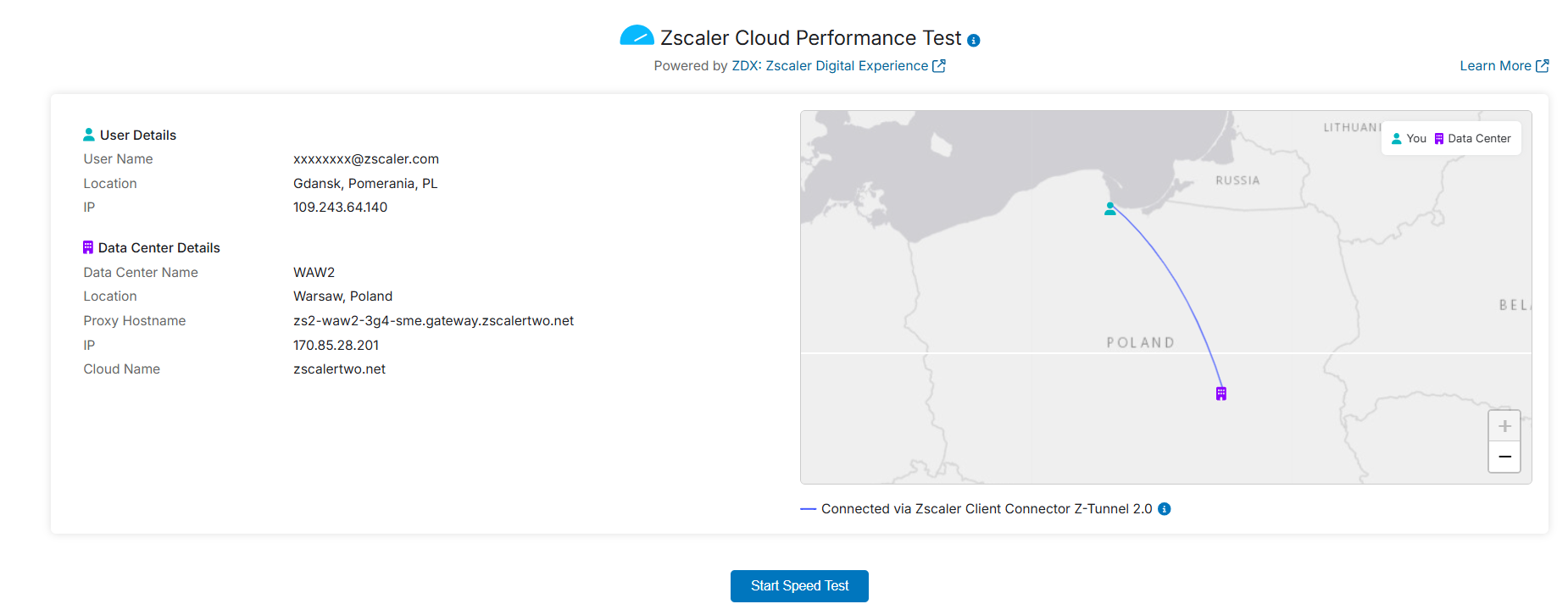
Go to speedtest.zscaler.com. As you can see, i’m using Z-Tunnel 2.0. I’m not really in Gdansk but the public IP i’m using is registered there. It’s not (in this particular case) relevant.
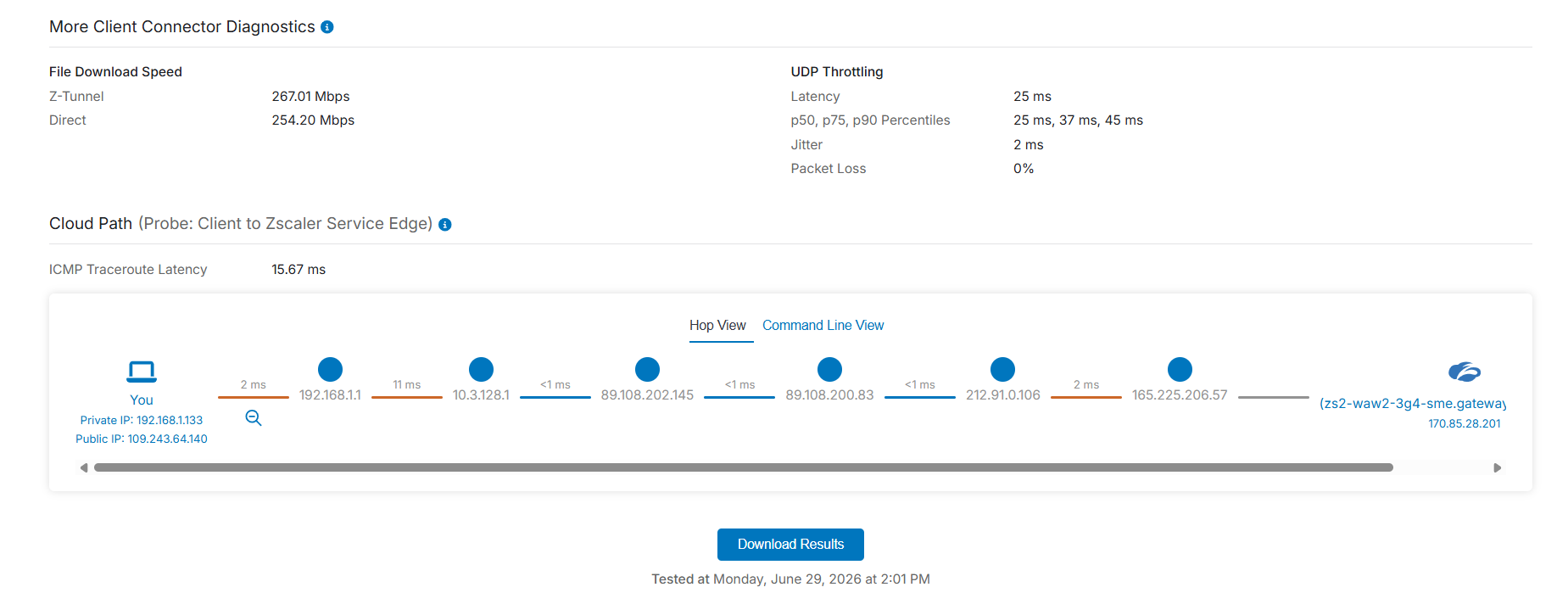
After doing the speed test, click on More Diagnostics. This can provide some useful insight into problems. For example: If the first hop between you and the next IP address was 100ms, the problem would be on your home router. In this case, distances between each hop are absolutely ideal***.
What does all this mean in practice?
If you are using tunnel2.0, the absolute maximum (in ideal conditions) you will get is a maximum of 300-350mbit/s*. Normally you will get much less, around 80-120mbit/s.
if you are using tunnel1.0, you can expect a bit more, but normally not more than 300mbit/s. 500mbit/s in absolutely ideal conditions if you have a 1gbit/s connection, it’s a starry night, Mars is in Pisces and you’re the chosen one. But you’re not so forget it.
Let’s take me as an example. I’m connected to Warsaw DC with tunnel 2.0 BUT with t1.0 for web traffic (a so-called hybrid mode) and i have a 600mbit/s connection.
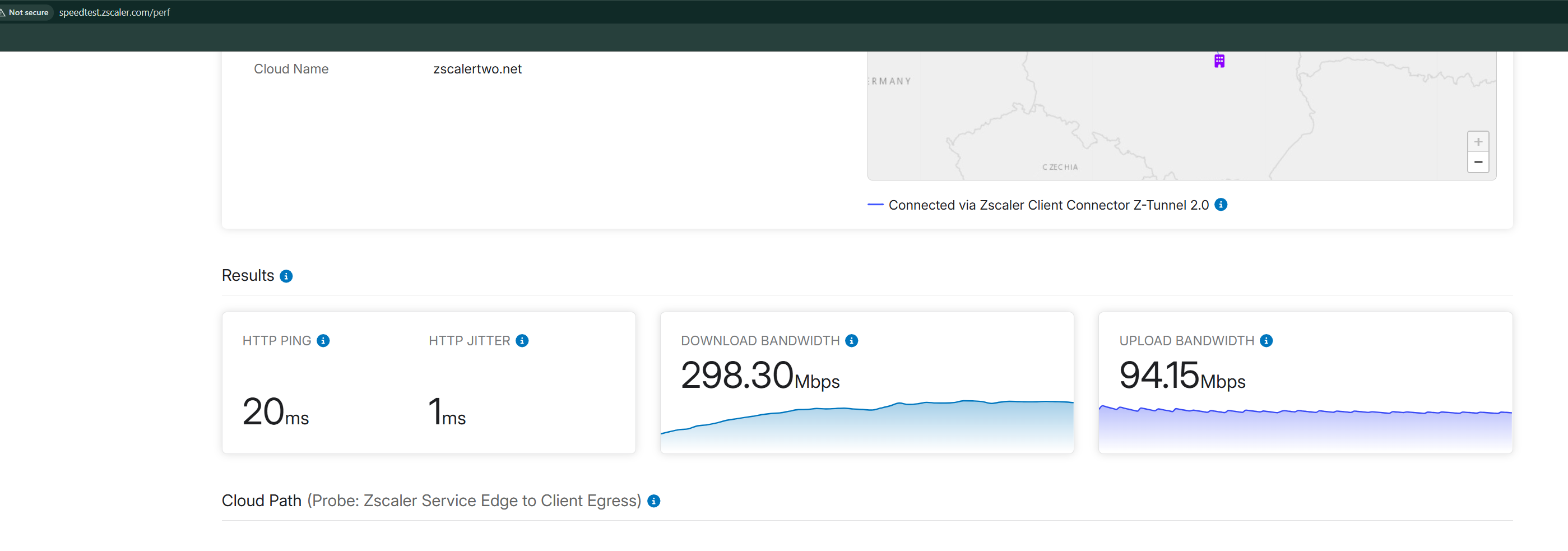
I’m not a power user so I’m perfectly happy with this. If I wanted to get more, I would most likely need a different ISP (I’m using a fiber connection from Play ISP in Poland). One thing that definitely won’t work: calling your ISP and complaining. They will blame the application and because you’re not an enterprise client, they won’t do anything.
How should you measure your DL and UL or check where you’re connected?
Use speedtest.zscaler.com and Azure download speed test. These are usually the most reliable benchmarks.
Measure speed by connecting directly to your line (=remove the router) . Use a good, store-purchased, cat5/6 cable; don’t use wifi to test. Then go to your neighbor’s flat and retest with his line/ISP. If you’ve connected directly to the line and suddenly the line is down, call your ISP: they need to unblock the new MAC address.
Do not measure throughput when using a docking station. Docking stations often use a shared inside bus for all connectivity (HDMI, USB, Ethernet etc.).
When should you create a ticket if you’re in the office?
If you’re in the office and your company is using a GRE/IPsec tunnel, remember that your throughput is shared with other people because you’re all inside a shared GRE/IPsec tunnel. There’s not much we can do here for you specifically as the user unless you’re the only person in the office at the moment and you know for a fact that you should have 100% of the expected tunnel throughput.
If you’re in the office, there’s also usually a firewall there too, which adds some overhead etc etc. Only open a ticket if you suddenly have much less than e.g. an hour ago and it’s true for the whole office.
What can we do if the whole office is affected (=not just you) ? We/you can ask your firewall administrator to move your tunnel to a different DC. This may help and usually does.
If you’re a remote user, here are some good ticket-opening conditions:
Note!
It’s always best to talk to your company Zscaler admin first. They have a lot of experience dealing with similar issues and will know what to do.
a) if your throughput is suddenly much lower than it used to be in the past and it’s lower than, say, 50mbit/s. It’s a good scenario because there’s potential for a nice increase.
b) if you are on tunnel2.0 fully, your throughput is very low (20-30mbit/s) so you suspect you might have better connectivity with tunnel2.0 + tunnel1.0 (hybrid mode). Only the support team can put you on the hybrid mode. An easy fix.
c) the choice of DC (as seen at speedtest.zscaler.com) is non-optimal, because e.g. you’re in Poland but you’re connected to a DC in Africa. Non-optimal DC selection is easy to fix.
d) if your throughput is much lower after a recent ZCC update. Again, easy to fix because the support team can do a rollback.
Things to know ( or do yourself ):
– if you’re on tunnel 2.0, it’s possible to use TLS or DTLS. DTLS can in theory give you up to 500mbit/s, too, BUT a lot of providers rate-limit UDP in Europe. There’s nothing you can do about this. Only the Zscaler support team can switch you between TLS and DTLS.
– if your throughput has suddenly dropped to e.g. 20mbit/s, try connecting to your 4/5g hotspot and check if you now have more speed. If you do, the problem most likely is with your ISP, not with Zscaler. The 5g router/cell phone should ideally be outside the building (or at least near an open window).
– If your throughput has suddenly dropped and you get the same values for your ISP, your neighbour’s ISP and your 5g hotspot. say 10mbit/s in all 3 cases, this may mean that your network card got stuck. Go to your network card advanced properties and change any value from YES to NO or from ON to OFF, click ok. This will reset the network stack and can sometimes help. It’s a bit of a last resort thing but i’ve seen it work many times. Don’t ask me why, this is black magic beyond my ken.
– changing your DNS to 4.4.2.2 or 8.8.8.8 is a good idea. Sometimes your ISP’s DNS is crap. This helps with cases where DL and UL are good but everything still feels slow, especially browsing.
– don’t use any traffic inspection on your own home router (like ASUS parental control crap). This will mess with everything.
– it’s always a good idea to restart your PC
– although in theory this should never be a problem anymore, you can try decreasing the MTU on your network card to 1300.
– CPU problems will affect your DL and UL speed. Don’t do throughput tests if your CPU is chugging along at 100%. Close any games/unnecessary apps/teams/solitaire/active desktop wallpapers
– there is a special Zscaler feature called Dynamic ZIA Edge Selection. Ask your company Zscaler admin if this is enabled.
– some laptops don’t have an ethernet card. You can get a $20 USB ethernet card online.
In some countries it will always be quite far to the nearest Zscaler DC. However, this should not be a problem, at least not in Europe. When I’m connected to the UK DC, I still manage a decent 200mbit/s (over 2400km away)
If you’ve done all this and still want to open a ticket with our support, you can now provide much more information to your Zscaler admin and/or the Zscaler support engineer. Tickets with description “My PC is slow with Zscaler” are notoriously difficult to troubleshoot if this one sentence is all we get.
*There are some people I know who get up to 500mbit/s. This can happen if you’re on a specific ISP who (probably) peers either directly with Zscaler BGP AS.
***or they would be if i didn’t know that 192.168.1.1 and 10.3.128.1 are both on my desk in the garage. But i don’t really care because overall latency is 25ms***
Site2Site VPNs are crap
As a network engineer I used to set up a lot of S2S vpns. It was a great job: I would schedule a meeting with the other company’s representative, we would exchange VPN parameters, secret keys, encryption domains and voila: all employees from company A had access to all IP addresses from encryption domain of company B. Some application testing followed and we all went our separate ways, IT heroes that we were. Happy end.
There are obviously so many things that bother me these days about this setup.
a) as admin from company A, I never made sure that there were some access policies that would prevent unauthorized personnel from company B from accessing a machine that was part of their encryption domain. We never even asked questions about it.
b) conversely, admins from company B never asked us about our upgrade policies. In fact, our vpn hubs were so old that we wouldn’t be able to upgrade even if we had wanted to. We never asked them either.
c) In one example setup, there was a firewall on the left of our VPN router, with all ACLs + IPS + antivirus etc. All logging went to SIEM but in all the years when I was the admin, we never heard from anyone in SOC about any alerts connected with those VPNs. Hell, we had no idea who those guys were and if they existed at all
d) Because we were a vpn hub for hundreds of other service providers, those other companies had all sorts of gateways. Some of them new, some of them really old and crap. Incompatibility issues were galore. After a few years we almost always knew what the problem was with each of them but every now and again we spent hundreds of hours investigating a flapping tunnel.
I could probably go on and on like that but in a nutshell:
Firstly, if you have a site to site VPN to another company, all you see entering your network is an IP address. This is all you know. And this is far from enough. Firewalls simply don’t have enough processing power to look into those packets to see the problem. Also, how will you SSL inspect traffic from a different company?
Secondly, you need expert admins on both ends if you run into compatibility issues. Not every admin can debug.
Thirdly, VPNs don’t age well. Even the parameters used are good today, traffic can be recorded and decrypted next year when the man in the middle has access to new decryption techniques.
Get rid of your VPNs. Today.
URL Category Test
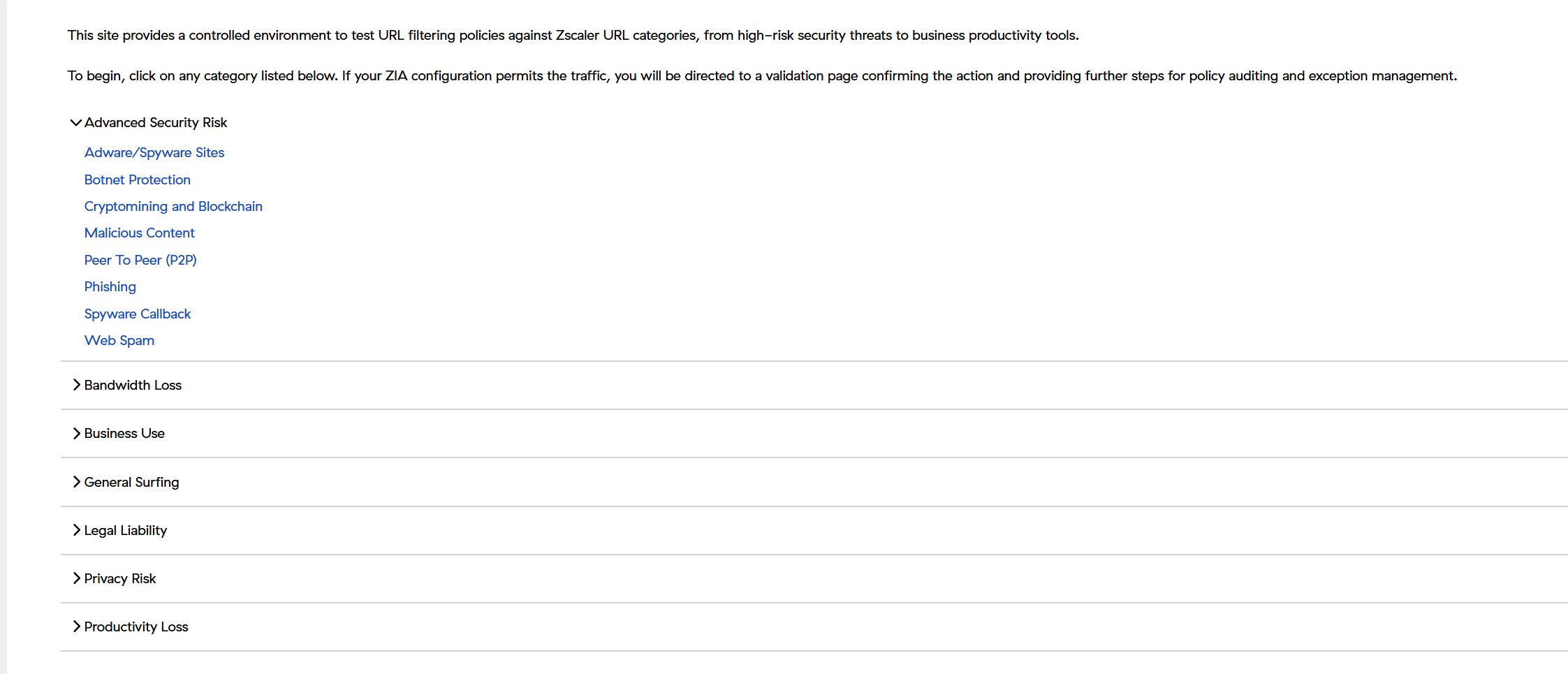
Zscaler now provides a set of URLs to test your URL filtering and SSL inspection rules. Pick a category, choose an example site and you instantly know whether the category is part of your policies on the PC being tested.
SMS MFA will be deprecated for hosted admins (not IDP-based)
Hello
Zscaler is deprecating SMS MFA for hosted admins on Aug 7. Please migrate to some other method of MFA authentication.
Miami IV DC now online
We have a new DC in Miami!

Note!
If you use a subcloud: remember you need to raise a support ticket to add this DC to your subcloud.
ZCC AI-found patches coming soon
Hola
It has been announced recently that Zscaler is now part of the Glasswing project.
Consequently, the first batch of new Zscaler Client Connector releases will be out on June 1st. In the mass email to clients Zscaler recommends to upgrade as soon as possible.
 My name is Tomek De Wille. Welcome to my blog about Zscaler